lionbackup Wizard
The lionbackup Wizard is the graphical interface to the
lionbackup client. It creates configurations, starts
backups — by hand or on a schedule —, restores backups and shows the log. The
actual work — compressing, encrypting, transferring — is done by the client: the
wizard writes its lionbackup.yaml and runs it. You can therefore switch between
the wizard and the command line at any time.
Download
The wizard is available at downloads.lionbackup.cloud/wizard:
- Windows (64-bit): a single
.exe, no installation. It is not signed yet, so Windows SmartScreen asks on the first start (see Troubleshooting). - Linux (x86-64, glibc 2.39 or newer, e.g. Ubuntu 24.04): a single executable.
The wizard finds new versions itself and installs them when you ask (see Settings & updates).
The lionbackup folder
Everything the wizard creates — the client, the configurations, keys, temporary
files and logs — lives in one folder: C:\lionbackup on Windows,
~/.lionbackup on Linux. The wizard locks it for other accounts. You choose a
different folder during setup or later under
Settings & updates.
First start
On its first start the wizard uses the system's language if it knows it — German, English, Italian, Spanish, Dutch, Danish or French —, otherwise English. You can change it with the language picker, on the welcome page and under About & updates.
Without a configuration the wizard begins with the assistant that sets up the first one: Setup. If lionbackup is already set up on this computer in another folder — on another drive, or as a copy from another computer —, choose it on the welcome page with Already set up? Open the lionbackup folder …. The wizard then restarts in that folder and finds its configurations, keys and logs there.
The main window
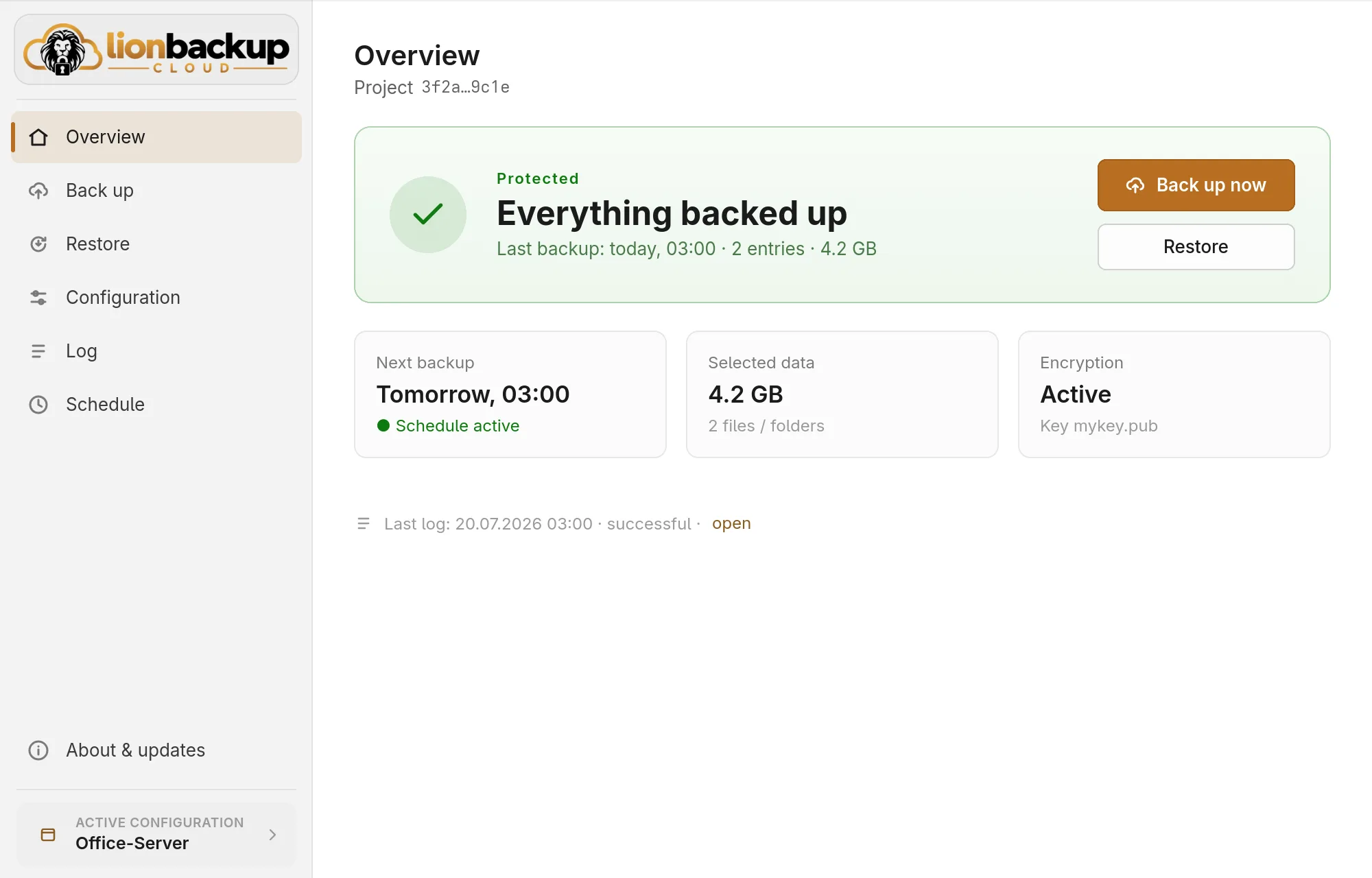
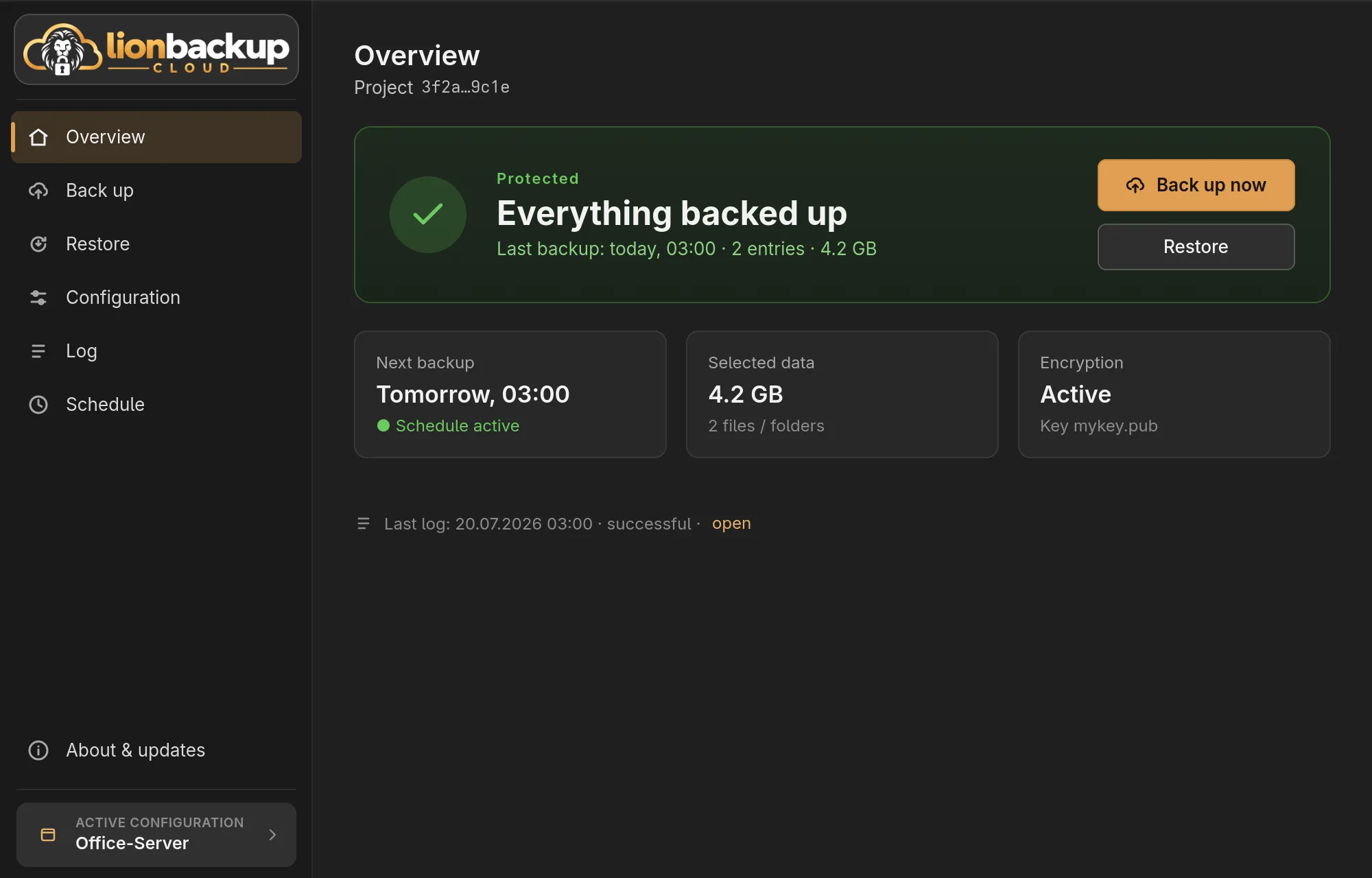
The bar on the left leads to the sections:
| Section | What for |
|---|---|
| Overview | The state of your backup at a glance (Backup & overview) |
| Back up | Start a backup and follow it (Backup & overview) |
| Restore | Get a backup back (Restore) |
| Configuration | Change sources, compression, folders and token of the active configuration |
| Log | Read up on this configuration's runs (Log) |
| Schedule | Set up automatic backups (Automatic backup) |
| About & updates | Versions, updates and settings (Settings & updates) |
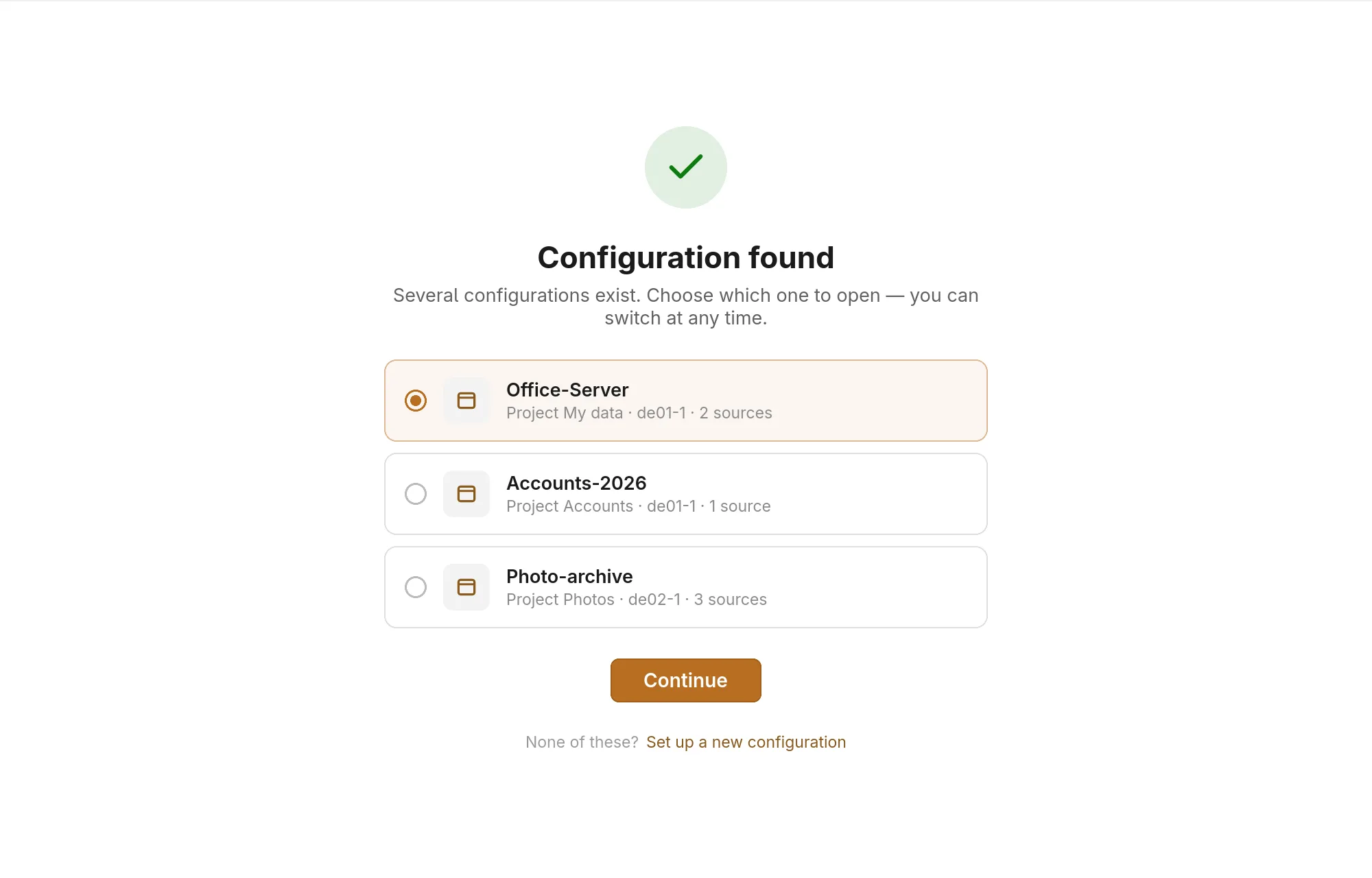
Several configurations
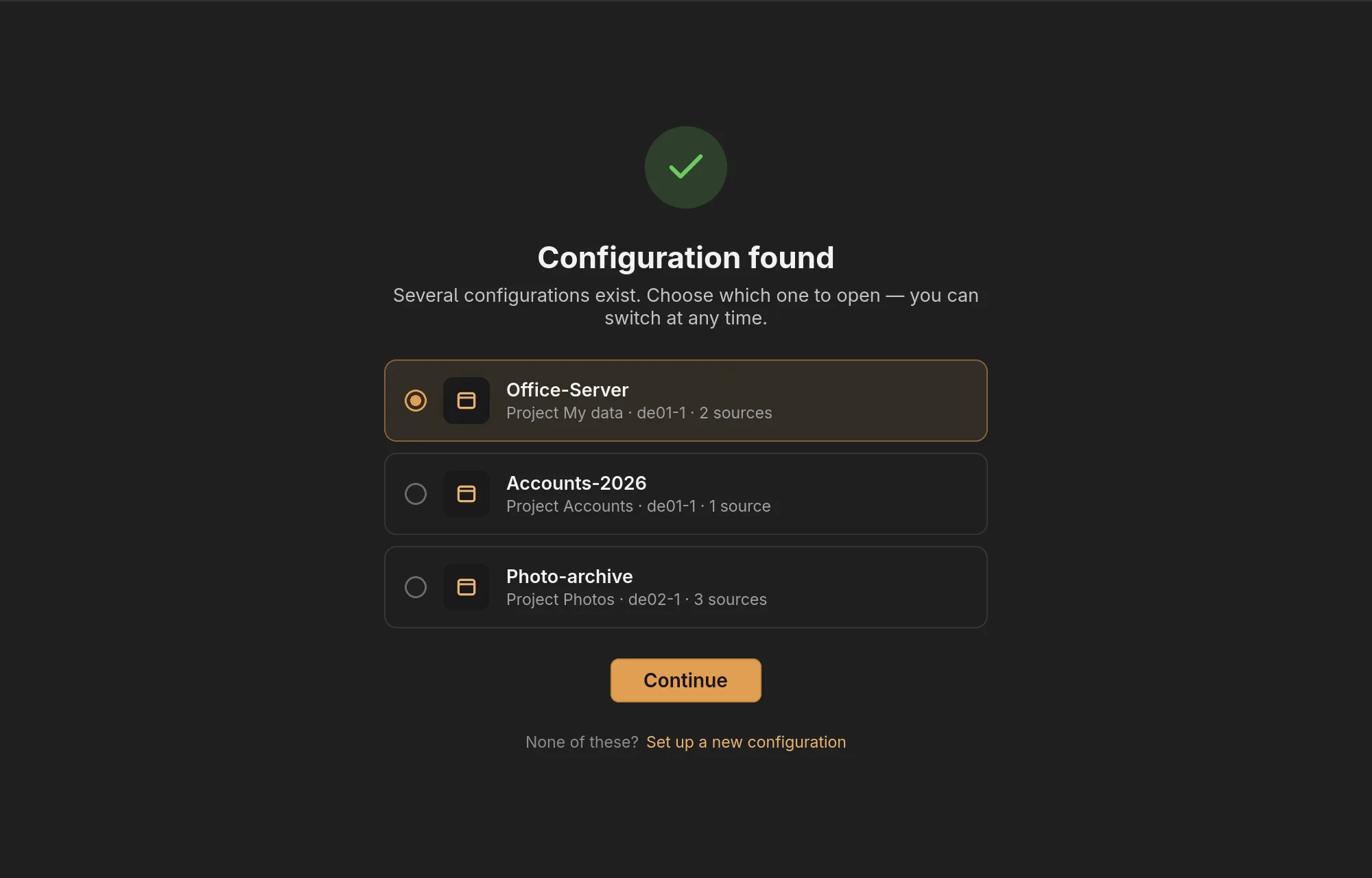
A configuration describes one backup: which data, into which project, with which key. There can be several, say one for the server and one for the photo archive. The Active configuration tile at the bottom of the bar shows which one is open; clicking it lists the others to switch to and offers New configuration…, which starts the assistant again. You cannot switch while a backup runs.
Which configuration opens at start is set under About & updates: the last used one, or a choice every time.
Demo mode
Start demo on the welcome page (and at the bottom of About & updates) opens the wizard with sample data. Nothing is backed up, no file and no configuration changes, and settings made in the demo are not kept. A banner shows that the demo is running; Leave demo goes back.
Licenses
- The lionbackup Wizard and the lionbackup client are licensed under the MIT License, © 2026 72IT GmbH. The client's source code is public at git.lionbackup.cloud.
- The interface is built with Slint, used under the Slint Royalty-free License 2.0.
- The wizard contains further open-source libraries, mostly under the MIT or the Apache 2.0 License.
- The fonts Adwaita Sans and Adwaita Mono are licensed under the SIL Open Font License 1.1.
In the wizard, About & updates → Licenses shows these details.