Backup & overview
Overview
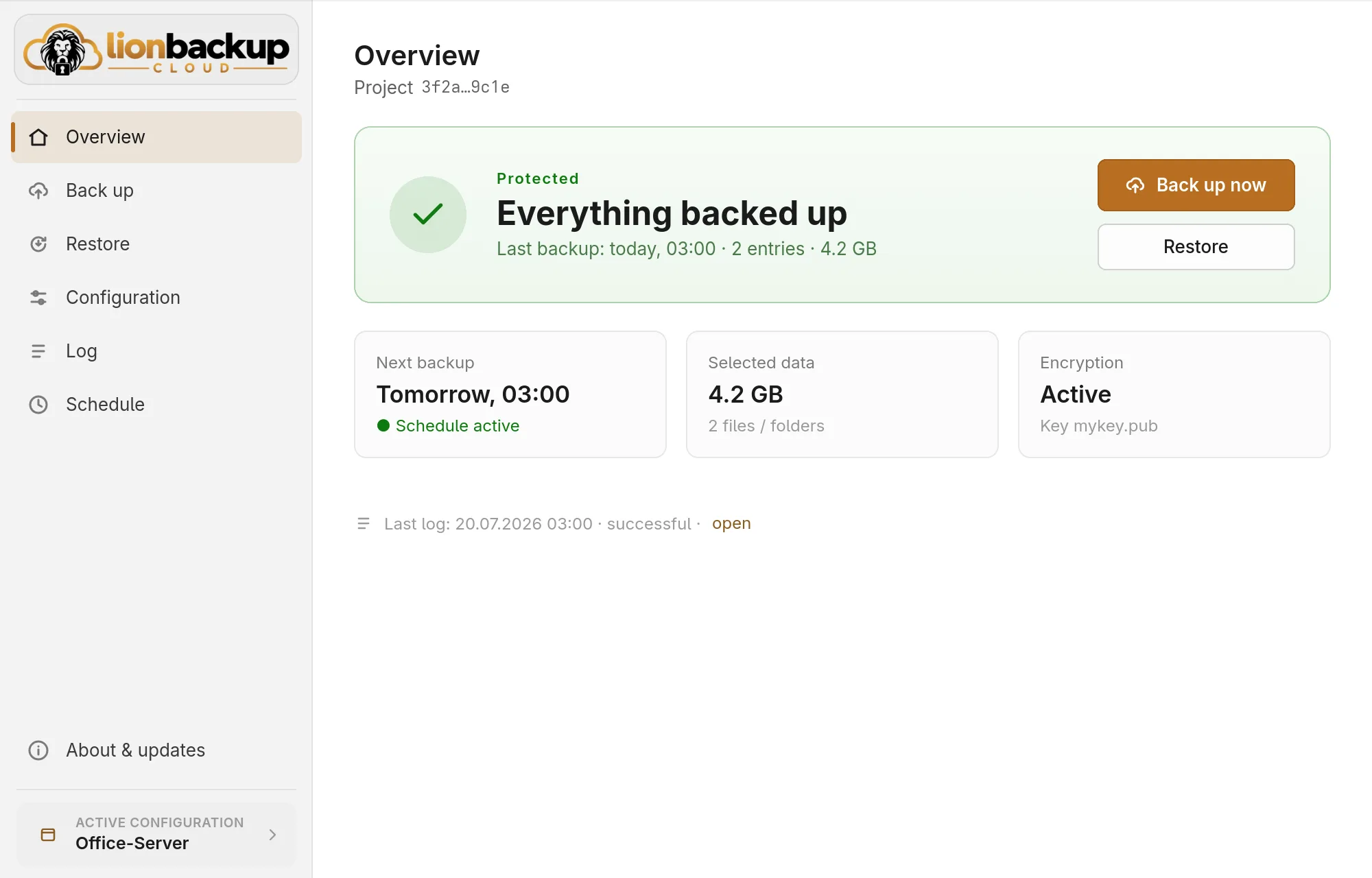
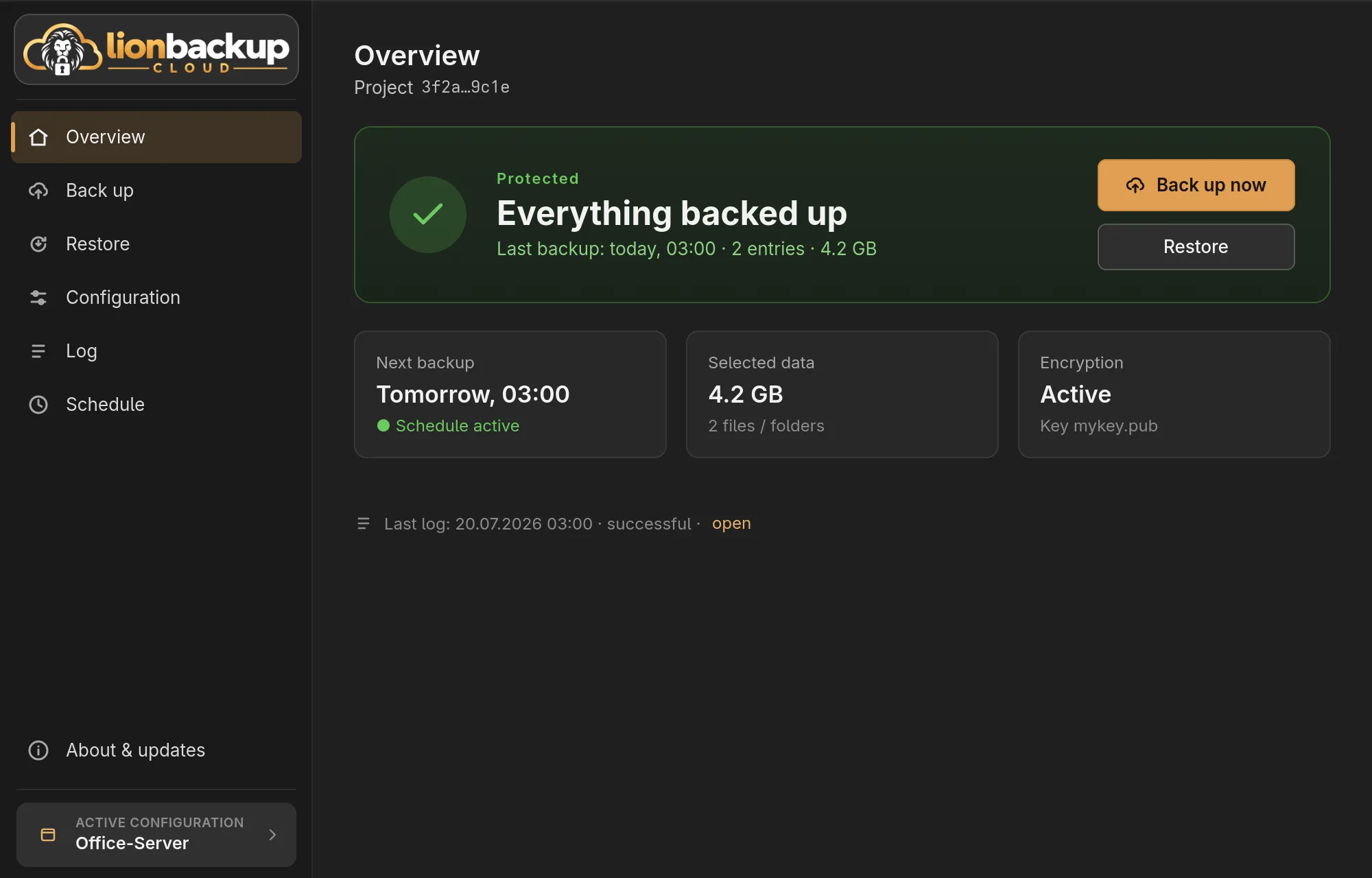
The large card at the top tells you how the active configuration stands:
| Card | Meaning |
|---|---|
| Protected – Everything backed up | The last backup succeeded. Below it: the time, the number of entries and the size of the selected data. |
| Last backup – Did not complete | The last backup was cancelled or failed. Last successful names the last one that worked. |
| Not backed up – No backup yet | This configuration has never been backed up. |
| Backup running | A backup started from the wizard is running. |
| Automatic backup | A scheduled backup is running in the background. |
After a backup started from the wizard, a card below shows the result until you hide it with Close: Done – Backup complete or Failed – Backup failed with the reason.
Back up now and Restore take you straight there. The small cards below:
- Next backup: when the automatic backup runs next, with Schedule active. No schedule active (Schedule inactive) means it is off; a click leads to the schedule. Manual only (Automatic backup not available) means none can be set up on this computer; the Schedule gives the reason.
- Selected data: the size of the sources before compression and their number.
- Encryption: the public key used to encrypt.
At the very bottom, Last log leads to the log of the last run.
Back up
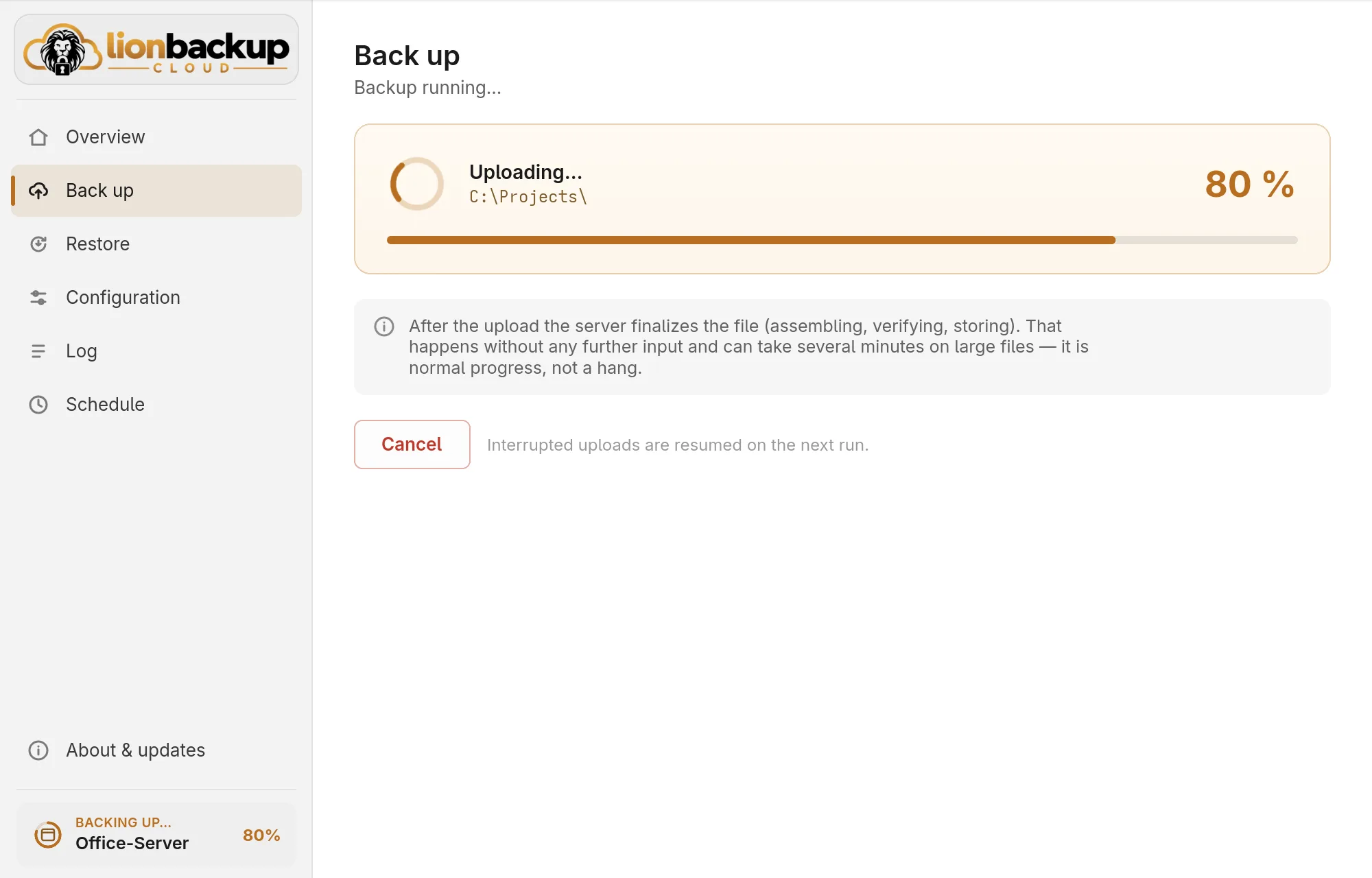
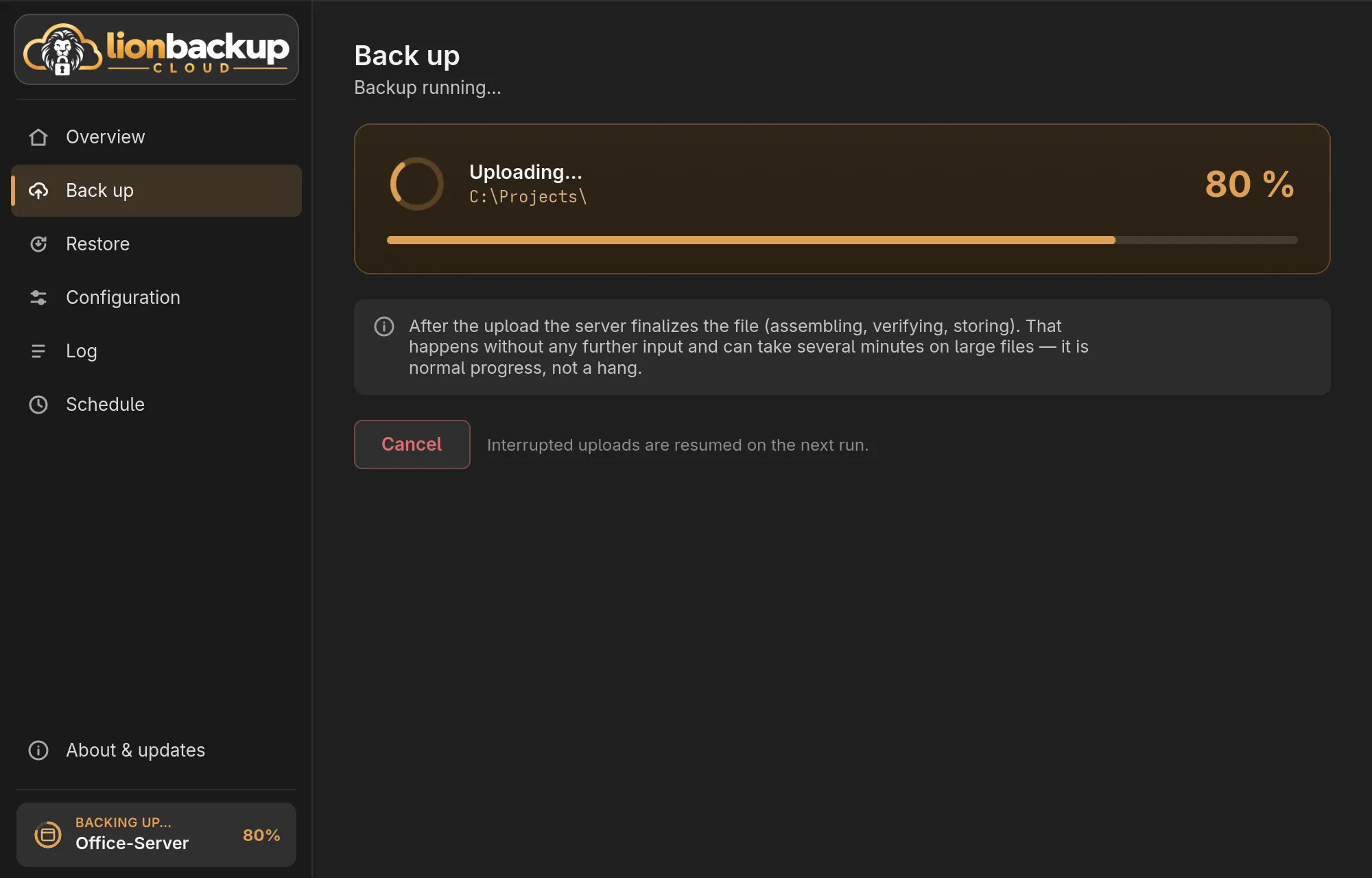
Back up now (or Start backup under Back up) starts a backup of the active configuration. The progress shows on the page and in the Active configuration tile, so you can look at other sections meanwhile. After the upload the server still assembles and checks each file; for large files that can take a few minutes.
- Cancel stops the backup. The next run resumes cancelled uploads where they stopped. A file the server is just completing is stored anyway.
- If a backup of this configuration is already running — usually the scheduled one —, no second one starts: the wizard says so, and it works once that one has finished.
- Closing the wizard while it backs up asks first.
You change sources, compression and the other settings under Configuration. Test methods there measures ZSTD, GZIP and LZMA2 on your own data and recommends one.
Log
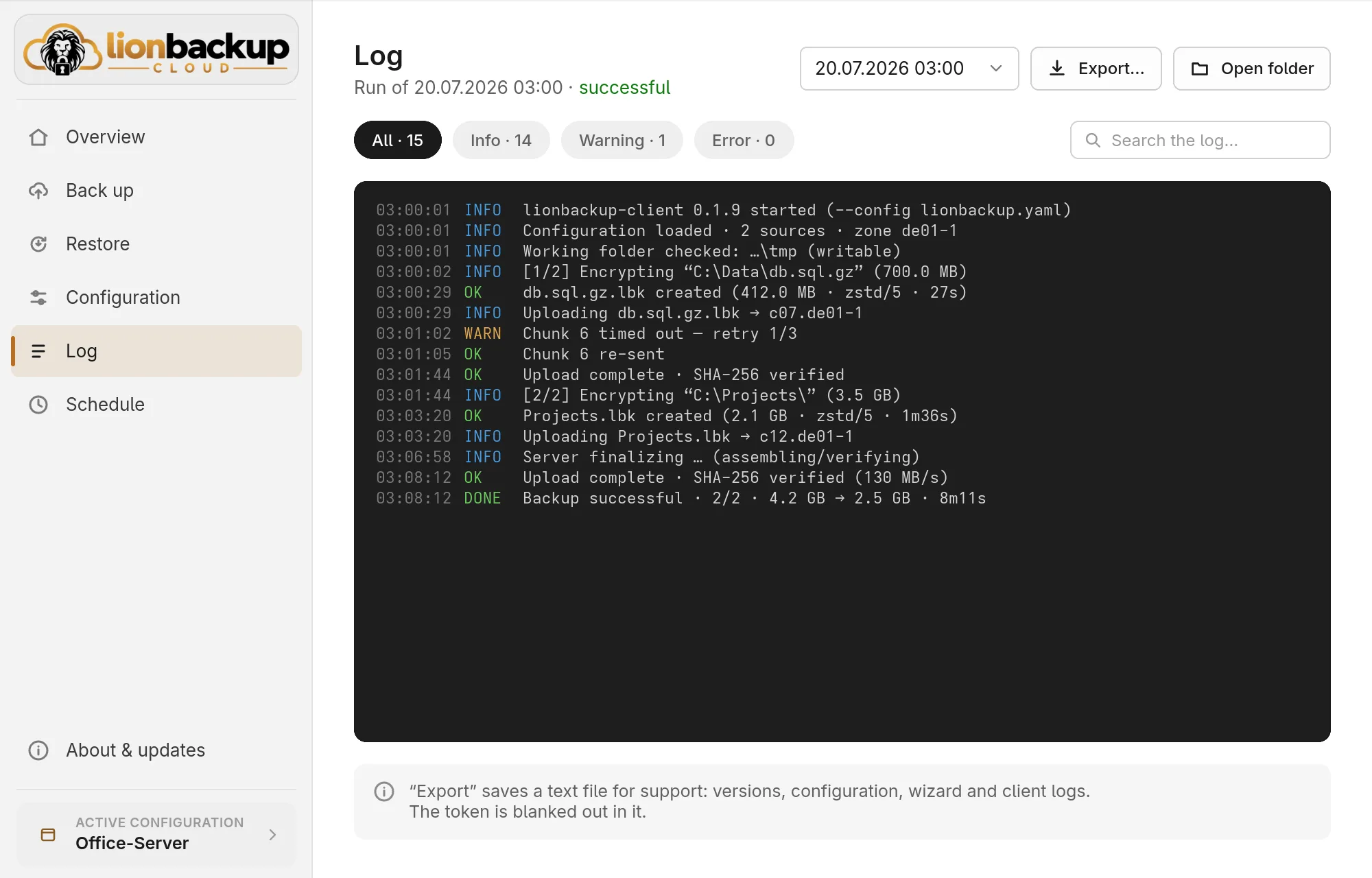
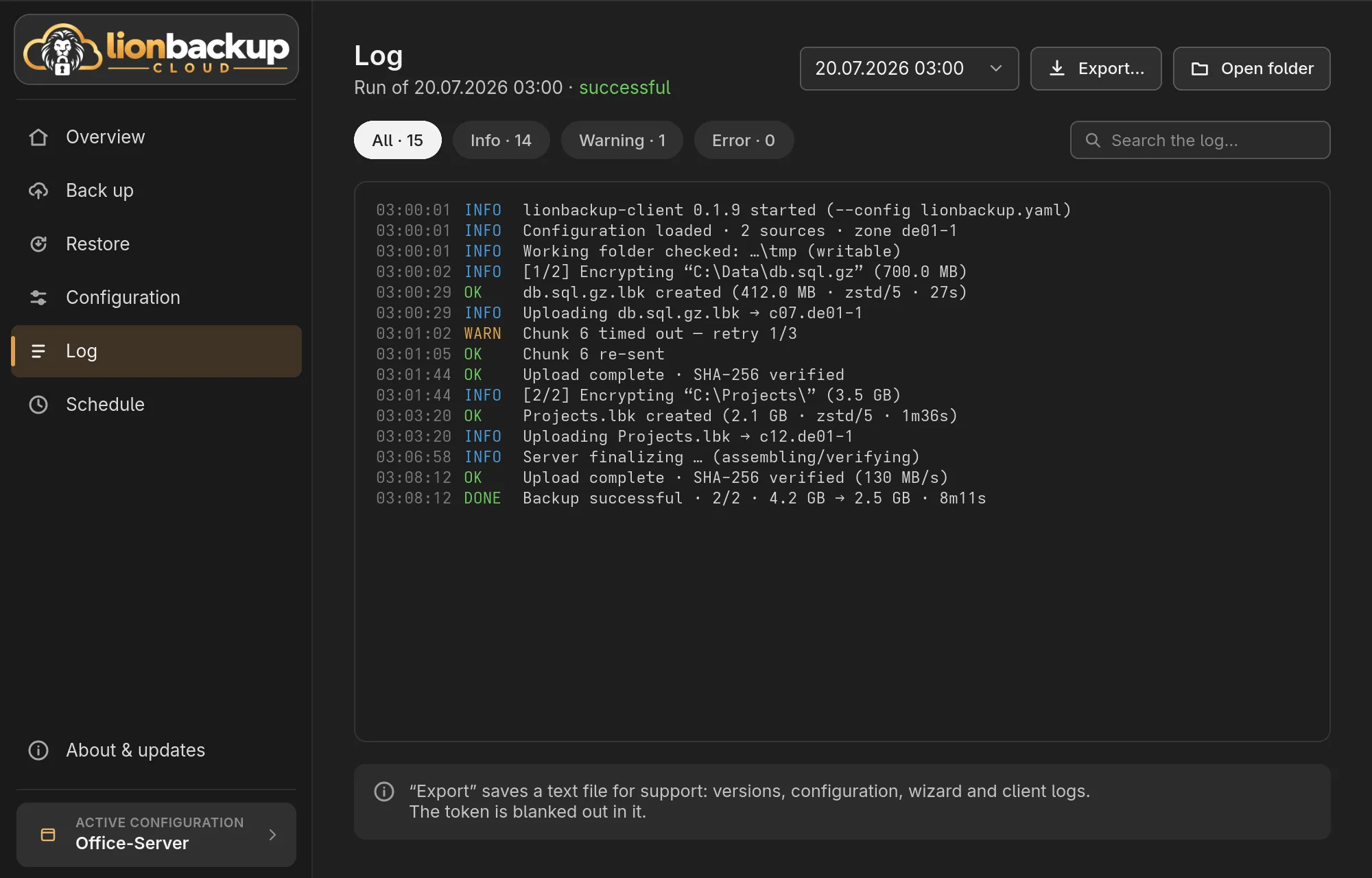
Log shows every run of this configuration: pick the run at the top, then filter by messages, warnings and errors, or search the text.
- Export… saves a text file for support with versions, configuration and the logs of wizard and client; the token is masked in it.
- Open folder opens the log folder if the configuration logs to a file (see Directories).
The wizard itself logs to the file wizard.log in the wizard folder of the
lionbackup folder. For a
support request the diagnostics bundle is the easiest (see
Troubleshooting).