Restore
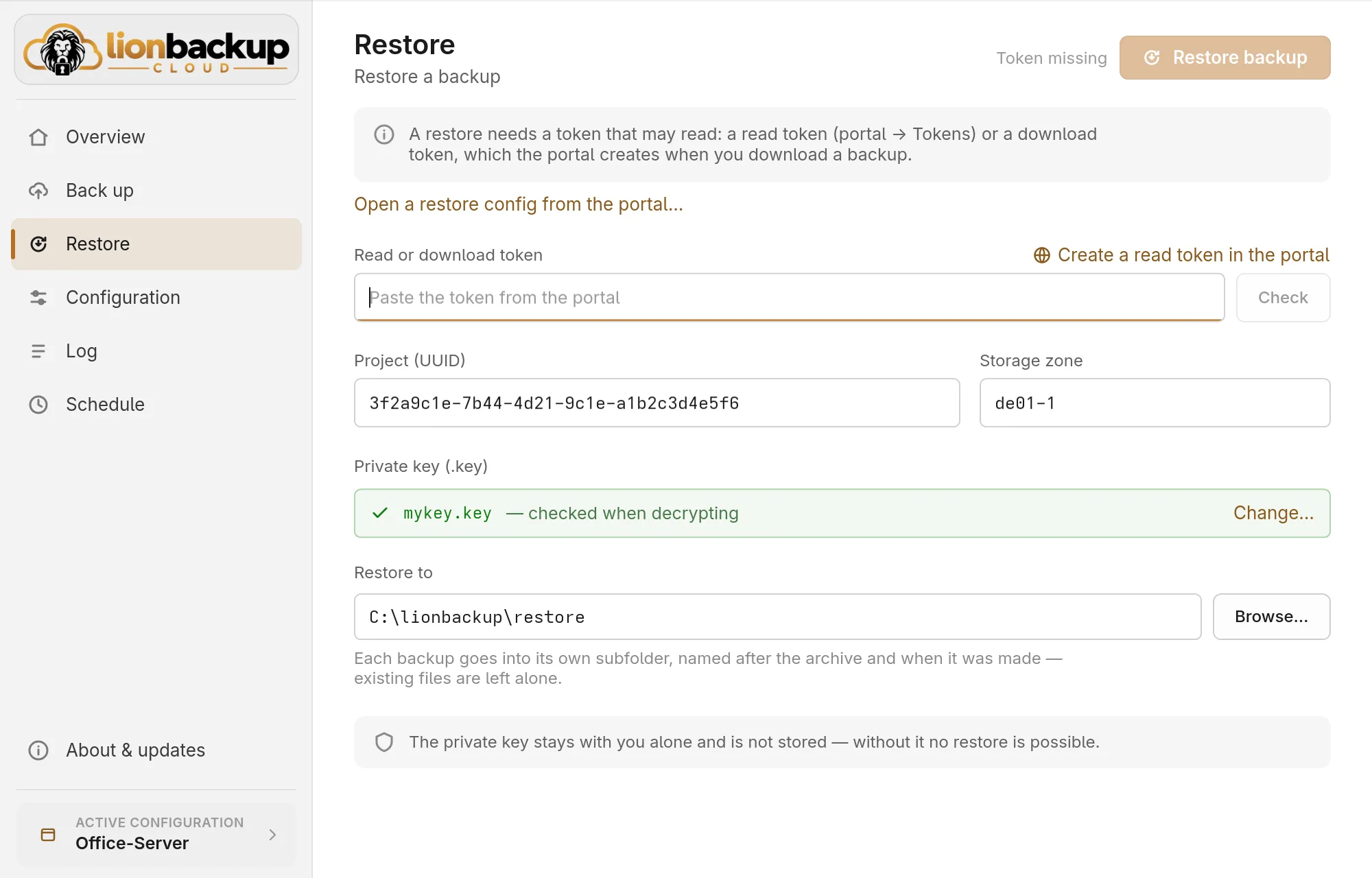
A restore needs a token that may read: a read token (Create a read token in the portal opens the page) or a download token, which the portal creates when you download a backup and which is valid for exactly one download. The backup configuration's token may only write and is no help here.
- Paste the Read or download token and Check — the wizard lists the project's backups.
- Choose the backup.
- Choose the private key (
.key) that belongs to this project. The wizard does not store it. - Choose the target folder under Restore to; preset is the
restorefolder in the lionbackup folder (C:\lionbackup\restoreon Windows). - Restore backup — the wizard downloads the backup, checks it, decrypts and unpacks it.
Every backup lands in a subfolder of its own, named after the archive and the time of the backup; existing files stay untouched.
Instead of pasting the token, you can open the restore configuration the portal offers with Save as file: Open a restore config from the portal….
When the key does not fit
With the wrong private key the backup cannot be decrypted, and the wizard reports The key does not fit this backup. The downloaded, still encrypted backup stays in the working folder: choose the right key, and the wizard only decrypts and unpacks, without downloading again.
The backups are encrypted with your key pair, and only whoever saved the private key during setup has it — not lionbackup either. If it is lost, the backups can no longer be opened.