Settings & updates
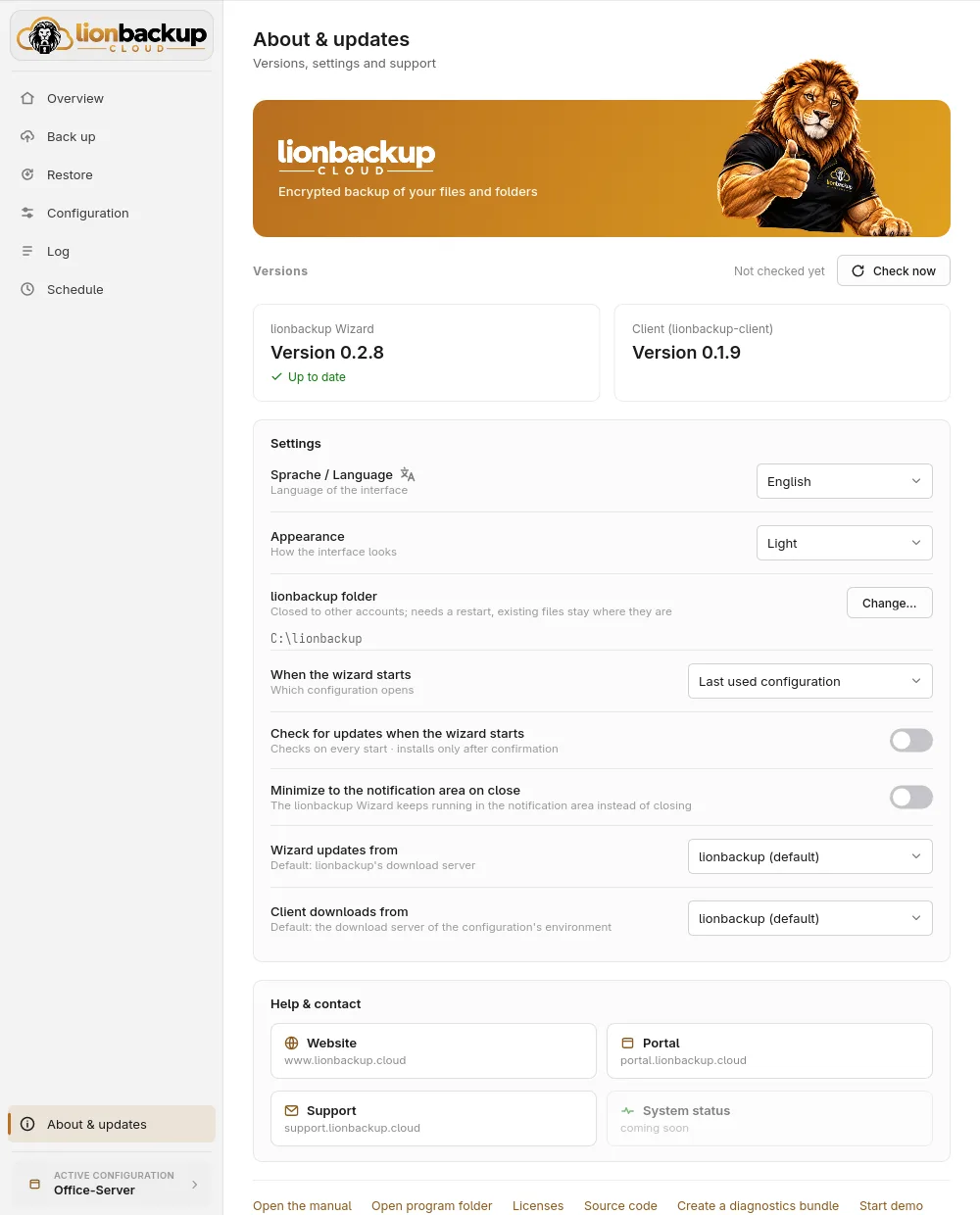
About & updates shows the versions of wizard and client, fetches updates and holds the settings that apply to the wizard as a whole.
Updates
Check now asks the download server for new versions; next to it you see when the last check was. If there is one, it shows on the program's card, and above that the wizard offers the update:
- Update installs one, Update all both one after the other, the client first, then the wizard.
- A bar shows how far the download is. Then the wizard checks it against the published checksum (Checking the download…) and puts it in place only once the new version starts.
- The wizard replaces itself and restarts; it asks about unsaved changes first. During a backup, a restore or a download it installs nothing. If one starts while the update downloads, the new version applies from the next start.
With Check for updates when the wizard starts it checks at every start; only what you confirm is installed.
Settings
- Sprache / Language: the language of the interface.
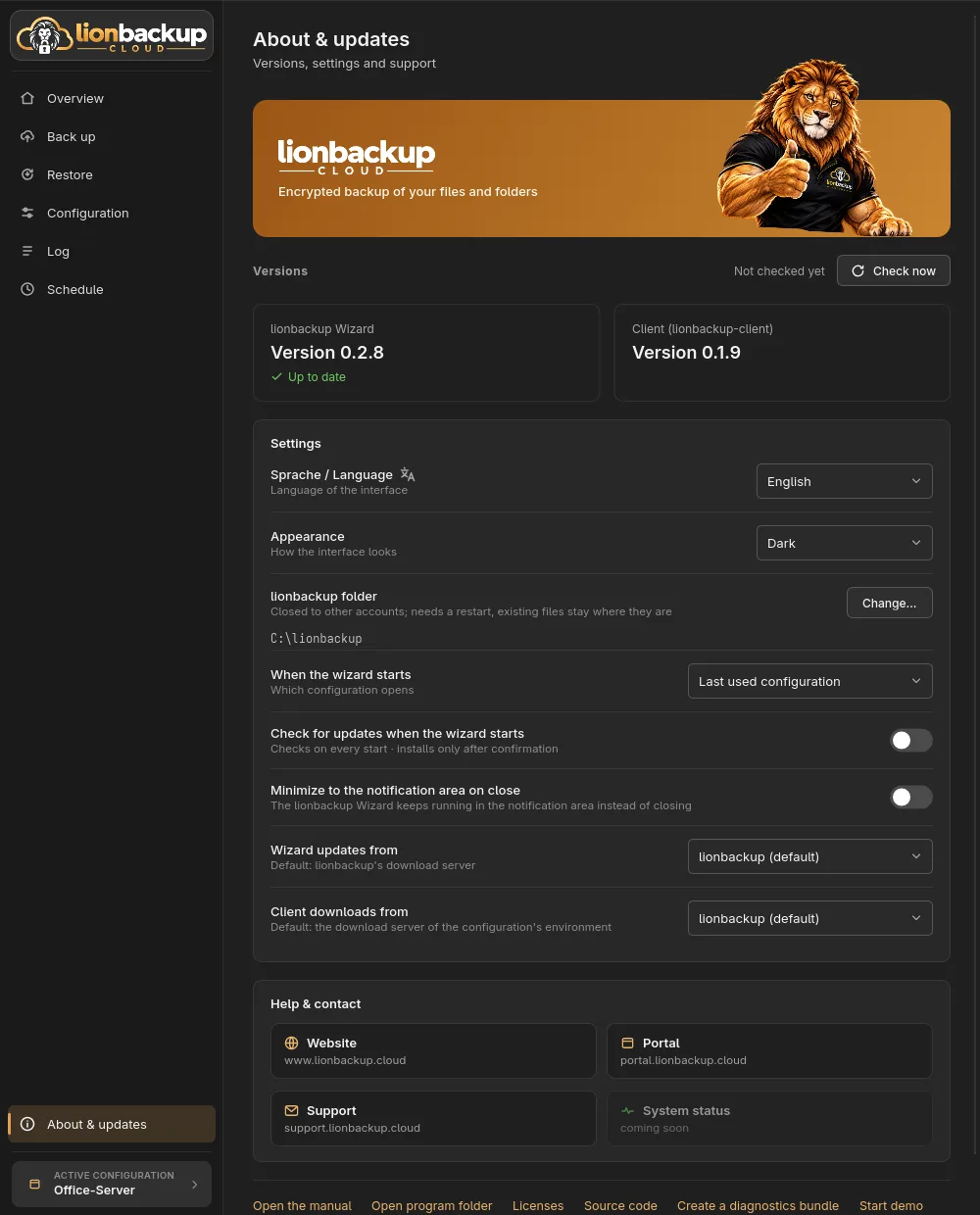
- Appearance: System follows the operating system's setting, Light and Dark fix it.
- When the wizard starts: opens the Last used configuration, or Always show the choice shows the list every time (see Several configurations).
lionbackup folder
Change… chooses another folder for client, configurations, keys and logs. The wizard then restarts in the new folder; the files in the old one stay where they are, and nothing is moved. The new folder is locked for other accounts as well.
Download sources
Updates and the client come from lionbackup's download server. Under Wizard updates from and Client downloads from you can choose Custom address instead, for a mirror of your own or a wizard you built yourself:
- For the wizard it is the folder holding
VERSION,SHA256SUMSand the program, e.g.https://downloads.example.com/wizard. - For the client it is the address its files are at, e.g.
https://downloads.example.com.
Only https:// addresses are allowed. Apply (or the Enter key) saves the
address and asks the server right away; the line below the field says whether a
lionbackup download server answers there and which version it offers.
lionbackup (default) goes back to lionbackup's download server.
The wizard installs programs from this address. Enter only servers you trust.
Help & contact
The cards lead to the website, the portal and support. Below them:
- Open the manual — this guide.
- Open program folder — the lionbackup folder.
- Licenses and Source code.
- Create a diagnostics bundle — a file for support (see Troubleshooting).
- Start demo — demo mode.